A construction firm intranet
A concept of a SharePoint Online homepage for a fictional builder, Cedarworks Construction. Every block is a standard out-of-the-box web part: hero, quick links, news, events, image plus text, and a Power BI tile for the on-time gauge.
- Audience field crews and project managers
- Brand palette slate blue and safety amber
- Licensing Microsoft 365, no add-ons
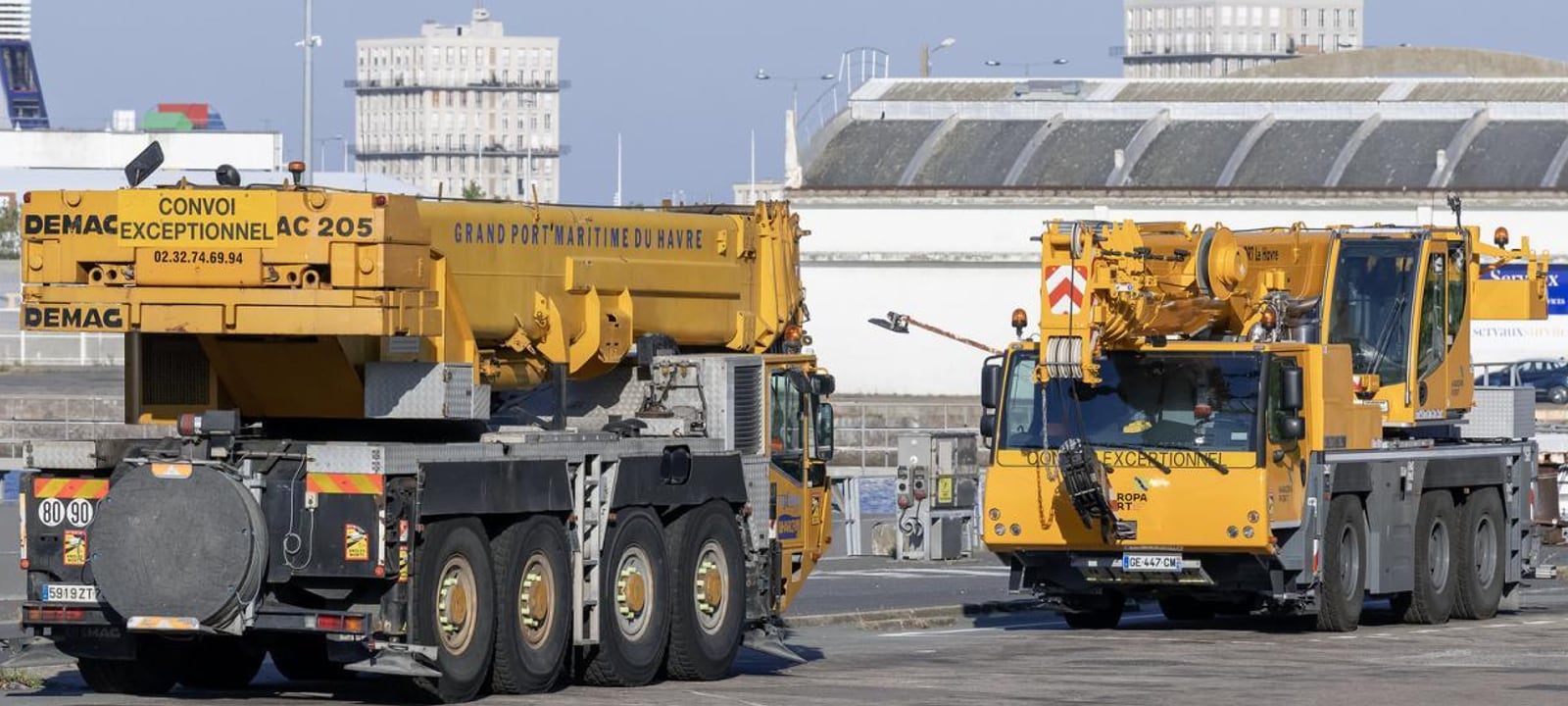
Building Connections
Beyond the Job Site
Document
Center
- Quick Access to Key Documents
- Standard Operating Procedures
- Safety Manuals
- Blueprints / CAD Drawings Library
- Project Bidding Guidelines
Health &
Safety Hub
- Safety Incident Reports (YTD)
- Safety Resources Library
- Report a Safety Concern
- Safety Resources Library
- PPE Guidelines & Request Form
Employee
Resources
- Timesheet Submission
- Expense Reimbursement Form
- Equipment Request Form
- Union Agreements & HR Policies
- Field Equipment Check-Out Procedures
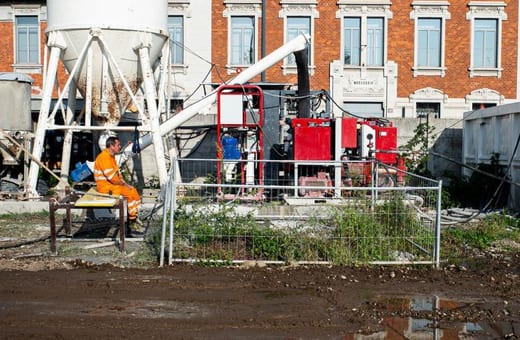 Q3 safety performance exceeds targets Cedarworks Construction passed its Q3 safety audit with zero lost-time injuries across all 14 active sites.
  Cedarworks opens new regional office A new regional office in Halifax brings field engineering and bid support closer to East Coast projects.
  Riverside Bridge takes Excellence in Engineering Award The State Engineering Association recognised the Riverside Bridge rebuild for its safety record and finish quality.


 MARIA LOPEZ
 the Month
Recognising Maria Lopez, Site Supervisor, who closed the Riverside Bridge quarter with zero incidents and the crew’s best inspection score on record.
Project Highlights
- Progress65% Complete
- DueDec 2025
- BudgetOn Budget (92% of funds allocated)
- Safety0 Incidents YTD
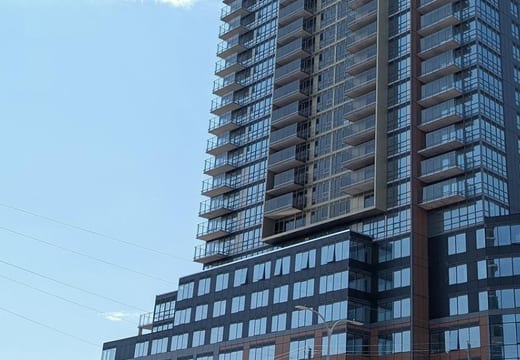
- Progress40% Complete
- DueJune 2026
- BudgetSlightly Over Budget (+4%)
- Safety1 Minor Incident YTD
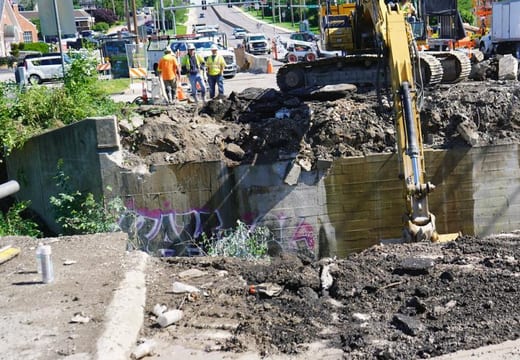
- Progress15% Complete
- DueSept 2027
- BudgetOn Budget
- Safety0 Incidents YTD
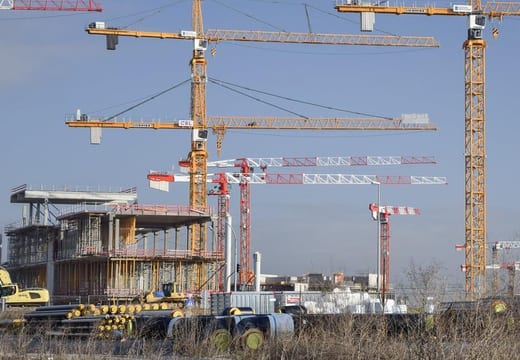
KPIs & Dashboards
Need help with your SharePoint implementation? Email us at
hello@tenantcraft.ca
Concept design, hand-coded to preview the layout. Cedarworks Construction is fictional; all names, numbers and photos are illustrative. The real page is built directly in SharePoint.
Want help building yours? hello@tenantcraft.ca
What you’re looking at
Nothing on that page is custom-built. Every block is a standard SharePoint web part, set up by an editor with permission to the site.
Click a card to see the exact steps for building it.
01 Hero web part The slate-blue band with the serif "Building Connections Beyond the Job Site" headline is the standard Hero web part in One Tile layout, with a job-site photo as the background and a coloured wash on top.
- On the home page, click Edit. Add a section, One column, just below the site header.
- Click + Add a web part and pick Hero. Layout: One tile.
- Click the tile, then Edit. Upload the job-site photo; set the focal point on the worker.
- Set heading to Building Connections Beyond the Job Site. Toggle Show text block on.
- In the section properties, set the section background to slate-blue. The Hero overlay picks it up automatically.
- Republish. The Hero anchors the home page and the slate band reads as a brand-coloured banner.
02 Quick Links: numbered tiles The four numbered tiles overlapping the hero are a Quick Links web part in Compact layout, with photo backgrounds and the large amber numerals added through item images.
- Add a section directly below the Hero, One column, with negative top margin (use the Pinned overlap pattern).
- Click + Add a web part and pick Quick Links. Layout: Compact (4 tiles wide).
- Add four items: Projects, Safety, Resources, People.
- For each tile, choose Image from this site. Upload a job-site thumbnail and an amber numeral overlay (01/02/03/04) as the icon.
- Toggle Show description off; the caption alone keeps the tile clean.
- Set each link to its destination page in the same site (Projects library, Safety hub, etc.).
03 Coloured resource panels The amber and slate side-by-side cards (Field Resources / Safety Hub) are two Quick Links web parts in Button layout, each placed inside a coloured Section background.
- Add a section, Two columns. Set the left column background to Amber, the right to Slate.
- In each column, click + Add a web part and pick Quick Links.
- Switch the layout to Button so the items render as pill buttons.
- Left panel Field Resources: add 4 buttons (Drawings, Specs, RFI form, Daily logs).
- Right panel Safety Hub: add 4 buttons (Incident report, Toolbox talks, SDS library, Hot work permit).
- Set the section header font to match the brand display face; the result is two coloured cards in one row.
04 News web part The Crew News column is the News web part in List layout, filtered to firm announcements. Each row pulls its thumbnail, title and intro straight from the page metadata.
- Add a section, Two columns. In the left column, click + Add a web part and pick News.
- Set News source to This site. Layout: List.
- Add a filter on the page property
Categoryequals Crew News. - Set Number of news items to 4. Sort by date descending.
- Authors create News pages tagged Crew News; the web part picks them up automatically.
05 Events web part Upcoming Events sits beside the news, sharing the same row. One Events web part pulled from a firm-wide calendar; field teams add events from the SharePoint mobile app.
- In the right column of the same section, click + Add a web part and pick Events.
- Pick the firm calendar list as the source. Layout: Compact.
- Show 3 events. Toggle Show event image on for the safety days and site visits.
- Set the date range to Upcoming so past events drop off.
- Field teams add new events from the SharePoint mobile app; they appear here without an editor touching the page.
06 People + Text (Employee of the Month) Featured employee is the People web part pinned to one staff member from the company directory, paired with a Text web part for the citation. Photo and title stay in sync with the directory.
- Add a section, Two columns (narrow / wide).
- Left column: + Add a web part, People. Layout: Descriptive.
- In Add a profile, type the email of the featured employee. Photo and title pull from Microsoft Entra automatically.
- Right column: + Add a web part, Text. Add the citation (why they're being recognised), keep it to one short paragraph.
- Rotate monthly: edit only the People profile email; the photo and title stay in sync with the directory.
07 Image + Text (Project Highlights) Each project card is an Image web part stacked above a Text web part, repeated three times inside a single coloured Section. No custom template; the structure is reproducible by an editor in minutes.
- Add a section, Three columns, with a soft surface background.
- In each column, click + Add a web part and pick Image. Upload the project photo, set the alt text to the project name.
- Below each image, add a Text web part. Use H3 for the project name, body text for the one-line update.
- Add a Quick Links single button below each Text web part for View project →.
- For a fourth project, add a fourth column; the layout reflows automatically.
08 Quick Chart (KPIs) The four KPI cards (Active Projects, Safety Incidents, Projects On-Time, Workforce) are Quick Chart web parts (bar, line, donut and counter respectively) typed in directly. No Power BI licence required.
- Add a section, Four columns.
- Column 1: + Add a web part, Quick chart. Type: Bar. Title Active Projects. Type the 5 monthly values directly.
- Column 2: Quick chart. Type: Line. Title Safety Incidents. Enter 12 months of values.
- Column 3: Quick chart. Type: Donut. Title Projects On-Time. Enter the on-time percentage.
- Column 4: Quick chart. Type: Counter. Title Workforce. Enter the headcount.
- No Power BI licence needed. To swap in live data later, replace the Quick Chart with the Power BI report web part.
More from the Studio
All scenarios →TWENTY MINUTES, NO PITCH
Tell me what is stuck. I will tell you what it takes.
Same consultant from the first email to the last cutover. If I am not the right fit, I will refer you to someone who is.